Sharing Trackers
Wiskit makes it easy to share trackers with other caregivers using QR codes. This allows multiple people to track the same activities and stay in sync.
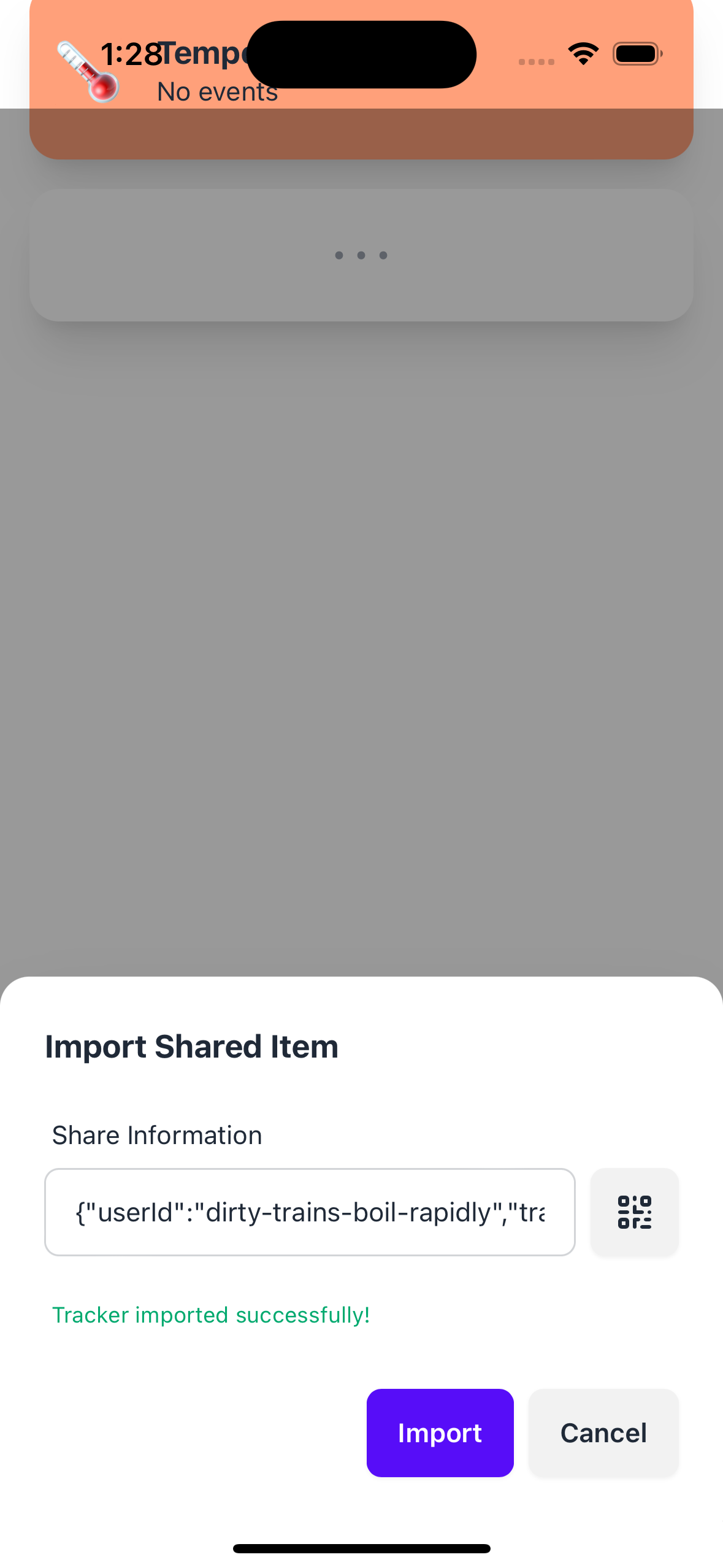
Importing a Shared Tracker
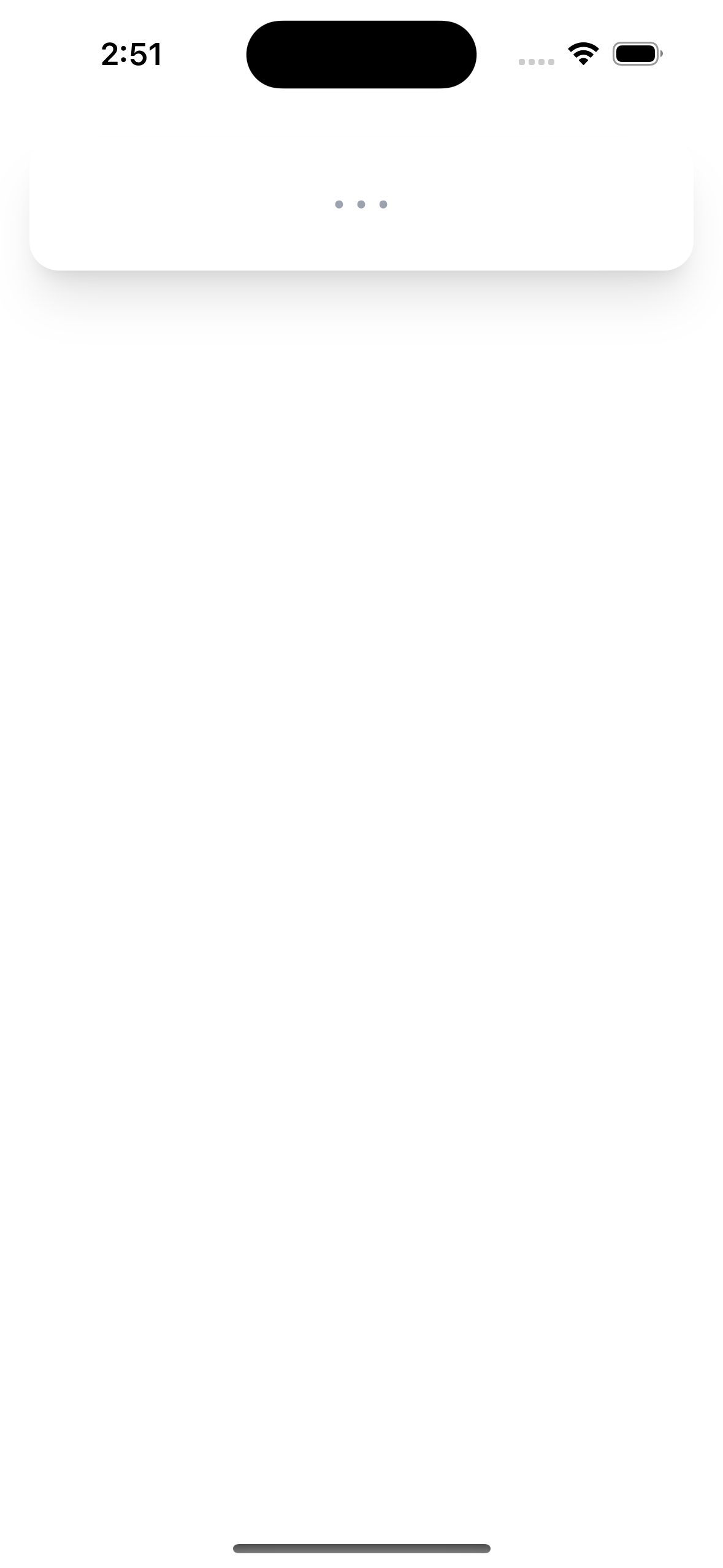
- Tap the empty card with a ”…” on it
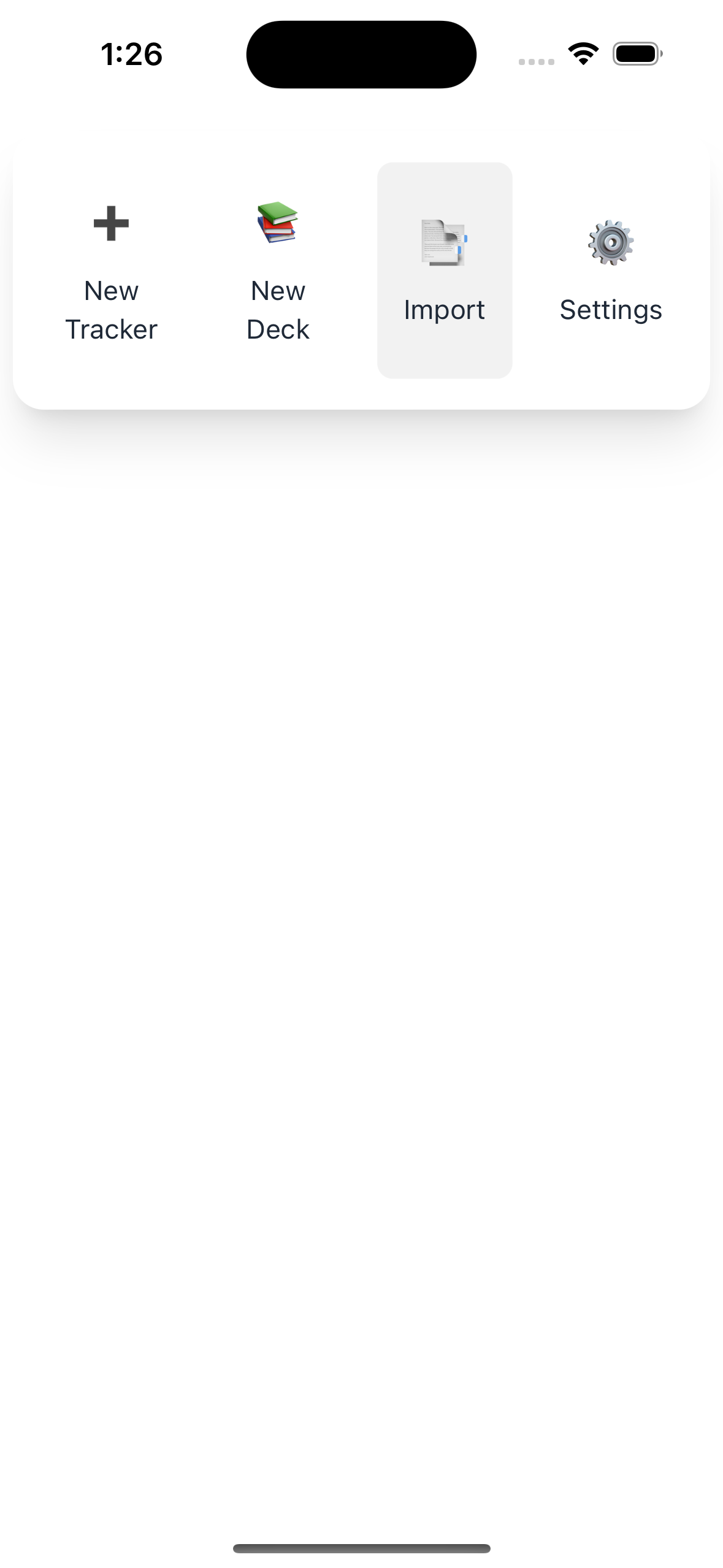
- Select ”📑 Import” from the menu
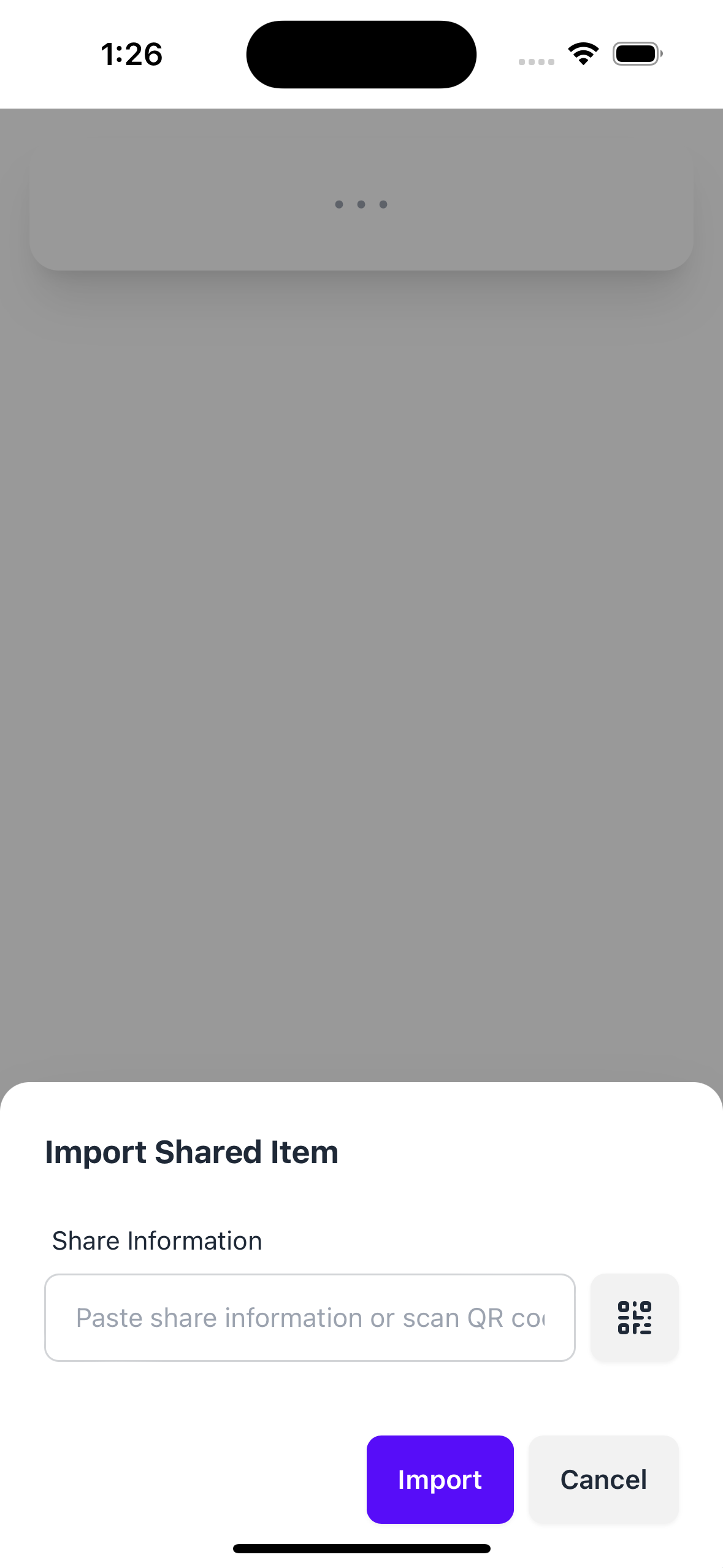
- Tap the scanner icon and point your device’s camera at the QR code
- The scanning experience is pretty wonky right now, but some text should show up when the scan succeeds
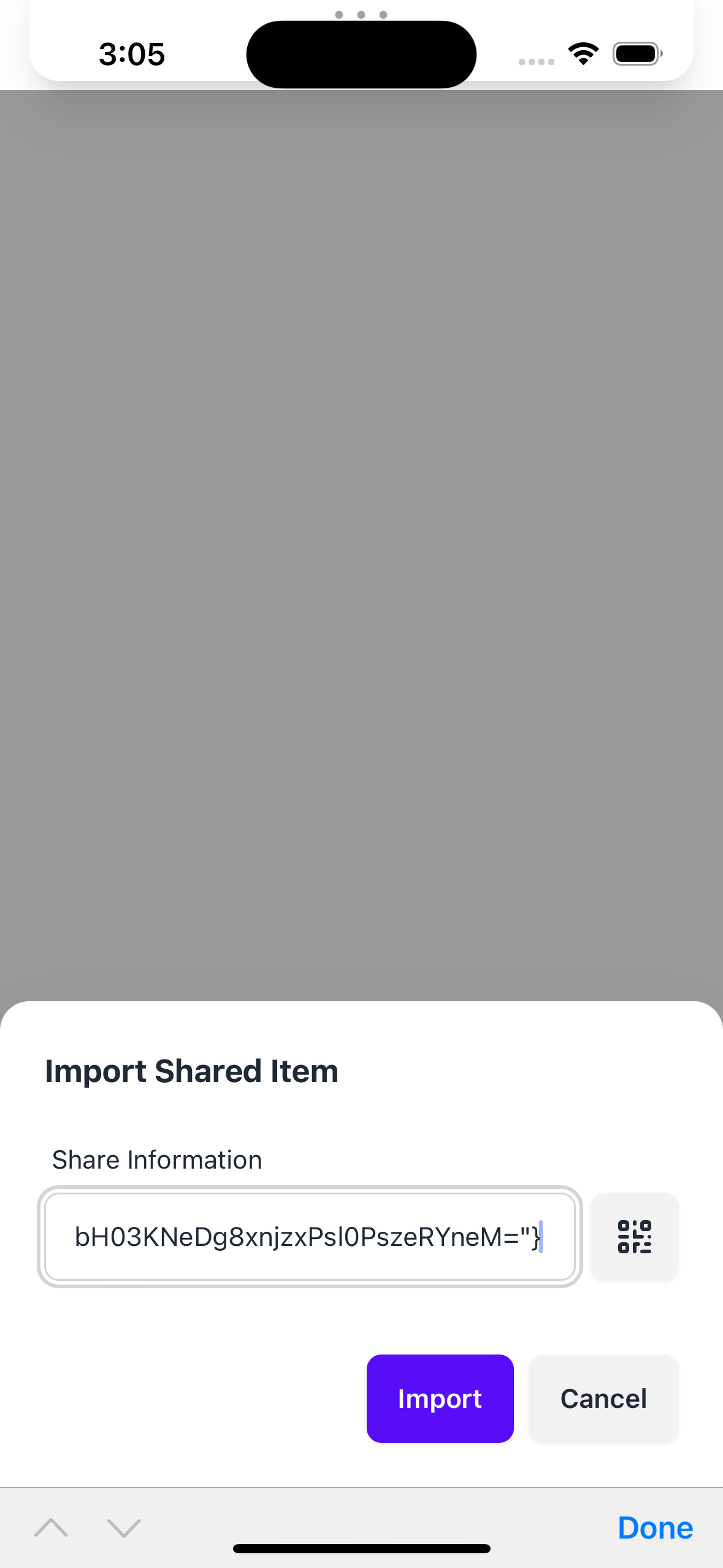
- Tap “Import”, and once imported, the tracker will appear in your list and automatically sync with updates from other caregivers.
Sharing a Tracker
- Find the tracker you want to share
- Tap the tracker to expand it
- Tap the Share button (📤) in the top-right corner
- A QR code will appear that others can scan
Privacy and Security
- Shared trackers are end-to-end encrypted
- Data syncs directly between devices (peer-to-peer)
- By default, no data is stored on central servers
Tips for Sharing
- Share trackers with your partner first to establish a tracking routine
- Create separate trackers for different locations (home vs. daycare)
- You can share entire decks of trackers at once
Troubleshooting
If you’re having trouble importing a tracker:
- Make sure you have a stable internet connection
- Check that the QR code is clearly visible and well-lit
- Try using the text code instead of the QR code
- Ensure you’re using the latest version of Wiskit